Commercial Center First Time Log In

If you need assistance, please call Treasury Operations at 800.272.1876 or email treasury_operations@mechanicsbank.com

As of March 23, 2026, your current Business Online Banking system has changed to Mechanics Bank Commercial Center.

Please follow the new first-time log in instructions below.
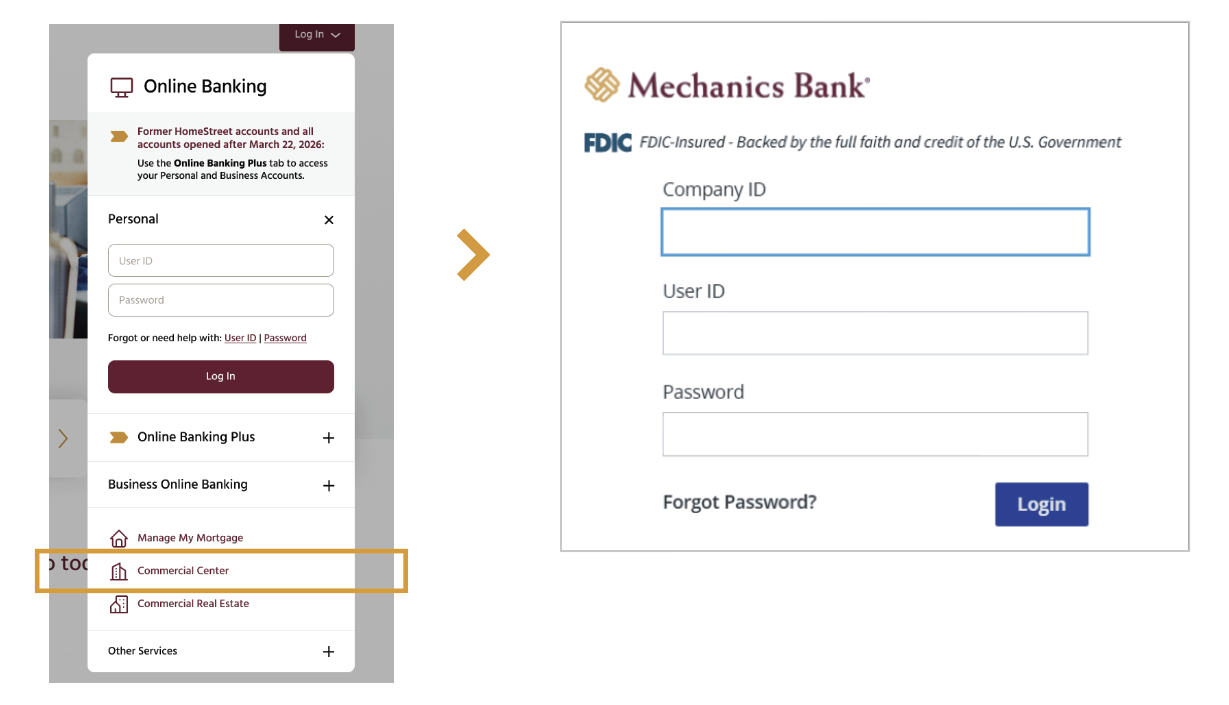
  1. Go to mechanicsbank.com
  2. In the log in box in the upper right, click on Commercial Center
  3. Enter your existing Company ID, existing User ID and temporary password. Enter your User ID in ALL CAPS and if your User ID uses any of these special characters, they will need to be removed: `~!#$%^*{}|[]\";'<>?/
    Your temporary password instructions will be sent via email and Online Banking secure messaging the week of March 16th. If you do not receive it, click on 'Forgot Password' and a temporary password will be sent to your email.
  4. You will be prompted to select/enter your permanent password. It must be 6 characters, with at least one letter and one number. Click Save.
  5. Log out and then log back in.

    Note: Logging in going forward, you will log in with your Company ID, User ID, permanent 
    password and one-time password you will receive via email. You can enroll in SMS 
    messages in order to receive the one time password via text instead of email.

As of March 23, 2026, your current Business Online Banking system has been changed to Mechanics Bank Commercial Center.

Please follow the new first-time log in instructions below.
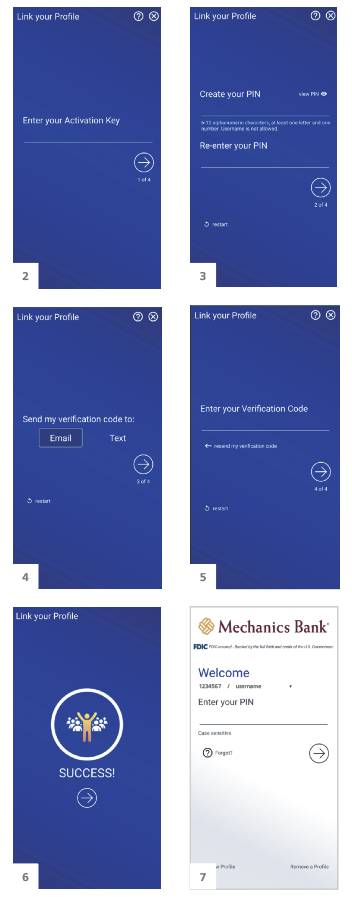
  1. Download the Mechanics Bank Commercial Center app from the appropriate Apple or Google Play store.


    Apple Store   Google Play

  2. Enter your Activation Key. You will have access to your Activation Key once you’ve logged in to the desktop version of Commercial Center.
  3. Create a PIN (this is not the same PIN that you created for the desktop version).
  4. Select your preferred method for receiving your Verification Code. (Note: the Text option will only show if you’ve already logged in to the desktop system and enrolled in SMS/Text. If not, you’ll just see the Email option.)
  5. Enter your Verification Code you receive via email or text.
  6. You’ll then receive a success message. Click on the arrow icon to be taken to the log in page.
  7. To log in, enter your PIN and click the arrow icon. If multiple users use the same device, you can change/select the user from the drop down menu.